

5 Google Clock app features that help me stop doomscrolling to fall asleep fast and sleep through the night
I developed a bad habit of doomscrolling in bed once the lights were out, and it’s been ruining my sleep and energy levels the next day. And I’m not alone in this: over one-third of US adults doomscroll in bed, according to a recent survey by the American Academy of Sleep Medicine.
Hunting for a solution to kick my bedtime doomscrolling habit, I downloaded the Google Clock app to my Pixel phone. I wasn’t expecting much at first, but since using five overlooked sleep features in the app, I’ve finally kicked my in-bed phone use habit. The pay-off? I’m now falling asleep faster and sleeping through the night.
Key takeaways: At a glance
- The Google Clock app acts as a hub for key features that help me fall asleep faster and sleep through the night: Bedtime Mode, Sleep Sounds, Sunrise Alarm, Google Assistant Routine, and Bedtime Activity Audit.
- You can find these features by downloading the Google Clock app from the Google Play Store (your device needs to be running Android 4.4 or higher).
- Bedtime mode, in particular, can help you unwind faster at night. The more relaxed you are falling asleep, the more you’ll boost your chances of sleeping through the night (because you won’t have any cortisol-fuelled 3 a.m. wake-ups) and feel full of energy in the morning.
- While the Google Clock Sunrise Alarm brightens your phone’s screen over a period of 15 minutes until your alarm goes off, it isn’t as effective as a 10,000 lux sunrise alarm clock for waking you up gently in the morning.
5 Google Clock features that help me quit doomscrolling to fall asleep faster and sleep through the night
For the longest time, I ignored these bedtime Google Clock features and used the app to just set an alarm and sync it with Spotify so I could wake up to my favorite songs.
However, the following features have reduced the time it takes me to fall asleep (sleep latency), and they’re helping me to get a good night’s sleep by putting an end to my bedtime doomscrolling:
1. Bedtime Mode
- This feature silences notifications and turns your screen grayscale. While it technically uses Android’s Digital Wellbeing engine, you set it up and toggle it within the Google Clock app.
A 2025 medical report published in Frontiers of Psychology revealed that insomnia levels increase by 59% per hour of using screens in bed.
My mental note on stopping doomscrolling at a particular time worked for a few days, until it didn’t. What actually made it an achievable goal was switching on the bedtime mode on the Clock app.
By setting the time you go to bed and wake up in the Clock app, you automatically pause all app notifications, calls and messages for the duration.
The best part? You can still allow selected contacts to interrupt your bedtime in case you’re expecting emergency calls or messages.
2. Sleep Sounds
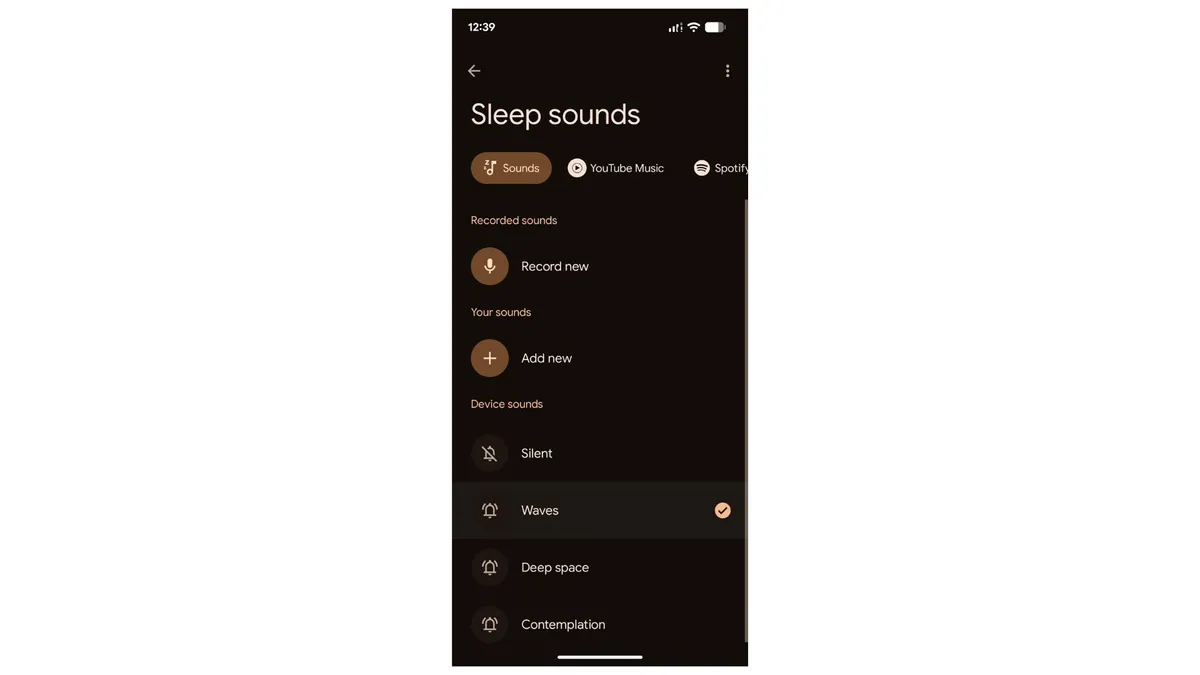
- You can choose to play sounds directly from the Bedtime tab. It integrates with Spotify, YouTube Music, or the Calm app, but the play/stop controls and sleep timer live inside the Google Clock app interface itself.
Falling asleep to soothing sleep sounds is more than a viral trend now. Generally, white, pink, green and brown are the popular sleep sound categories.
These basically include sounds at different frequencies which help set up a relaxing and calm environment, perfect to wind down and fall asleep faster.
If you’re someone who finds relaxing sleep sounds to help you fall asleep faster, on the Clock app, you can choose from existing options like waves, deep spaces or contemplation, record your new sleep sound or sync it with your YouTube Music Premium or Spotify playlists.
3. Sunrise Alarm
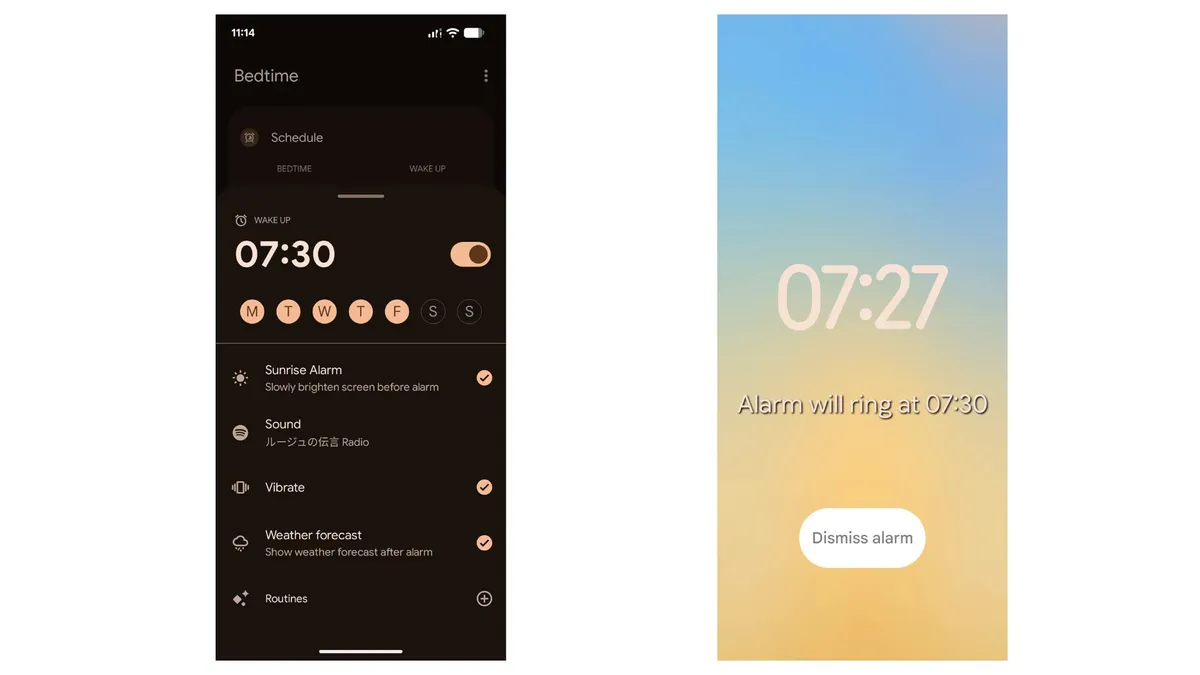
- This feature is native to the Google Clock app. Over a period of 15 minutes, before your morning alarm sounds, it brightens the screen on your phone from black to yellow-orange.
This is perhaps the biggest feature for Google to introduce, considering how sunrise alarm clocks can help convert the dread of waking up into a much more relaxed process.
All you have to do is switch on the sunrise alarm feature while setting up your bedtime routine. This brightens up the screen gradually, 15 minutes before your alarm goes off, simulating a sunrise.
Pairing this up with my favorite morning song makes waking up less of a chore and more of something I actually look forward to.
However, don’t expect the Google Clock Sunrise Alarm feature to compare with an actual sunrise alarm clock that emits 10,000 lux of light to wake you up.
4. Google Assistant Routine
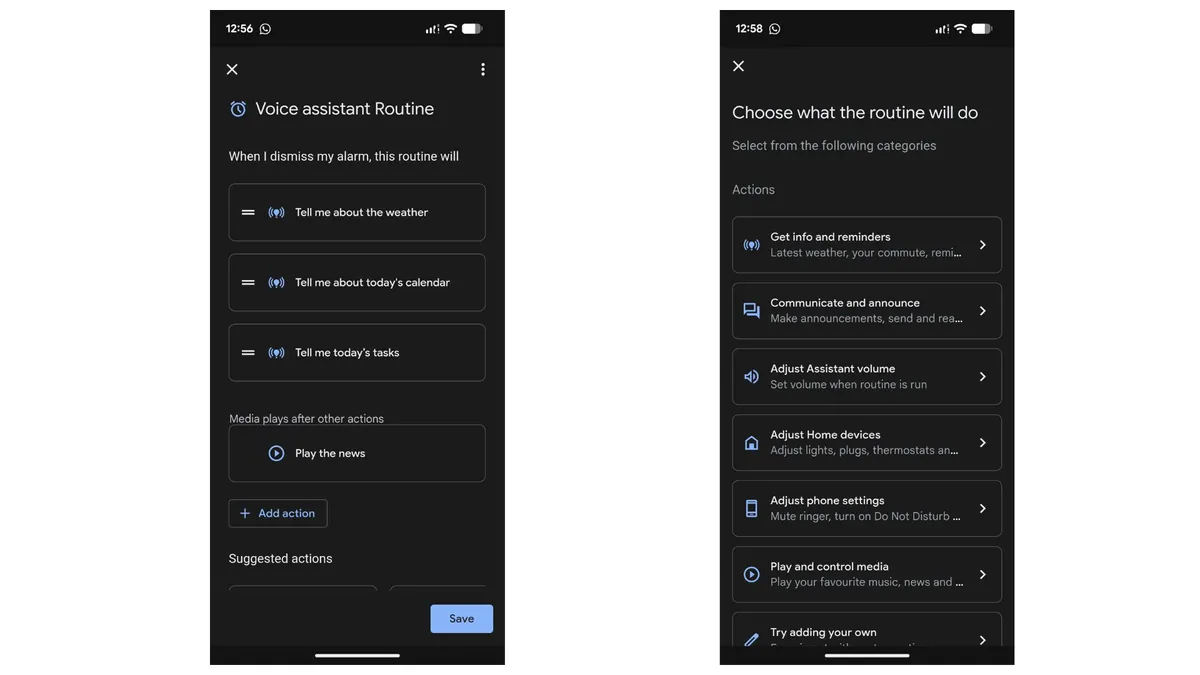
- You’ll find this within the Google Clock app’s alarm settings. When you tap it, it lets you ‘attach’ an action to your morning alarm (like having Google Assistant read out your calendar for the day ahead). Once you’ve set it up in the Google Assistant menu, you can manage it via the Clock app.
Is productivity something that keeps you up at night? For me, thinking about the next day, the list of tasks I need to finish or even the weather, often delays my bedtime.
Google Assistant comes to the rescue by helping you build a morning routine which works with you to have a great start to the day, sans worrying or rushing.
To activate it, click on the ‘routines’ feature when you set up your bedtime mode. This will give you several options like enabling the voice assistant to tell you about the weather, your daily calendar, tasks or straight open up media and play the news or music, once your alarm goes off.
5. Bedtime Activity Audit
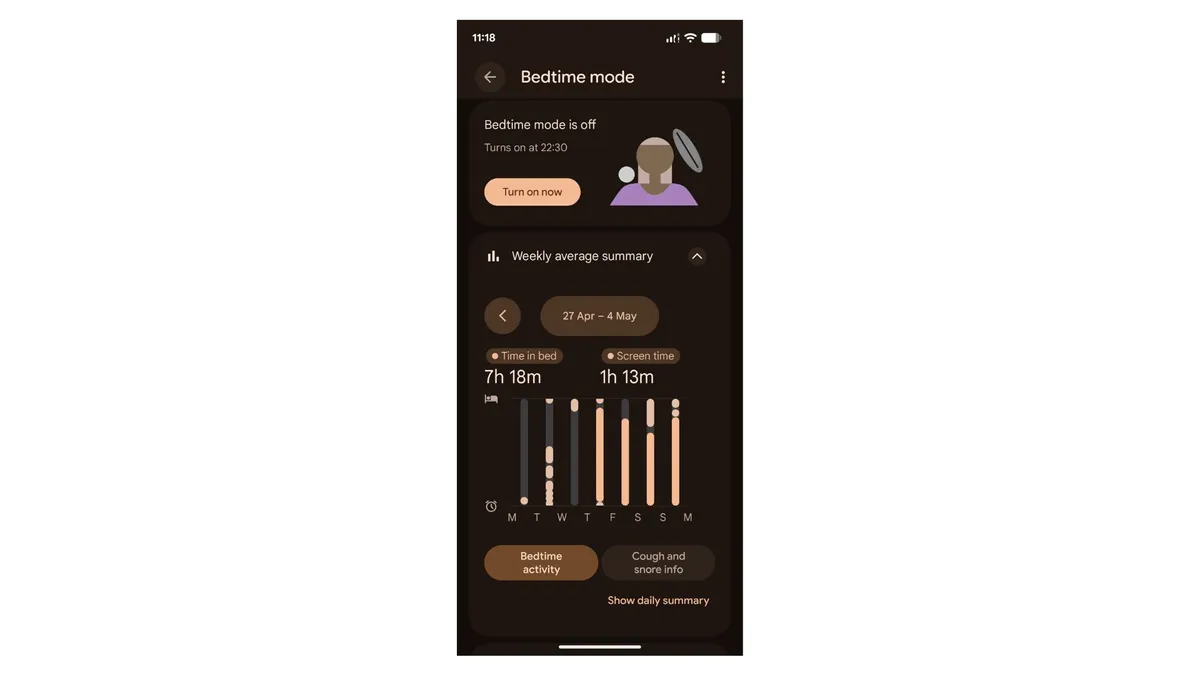
- This is the graph in the Bedtime tab that shows you how much time you spent on your phone after you were supposed to be sleeping. It takes data from Digital Wellbeing, but you can view the graph and a Recent Bedtime Activity card inside the Google Clock app.
While it does not give data on the specific metrics like the best sleep trackers do, the Clock and Digital Wellbeing app together tell you which apps you use during your scheduled bedtime and provide a bar chart view of your estimated time spent in bed.
If you did not use your phone during bedtime mode, it will say “Didn’t use phone.”
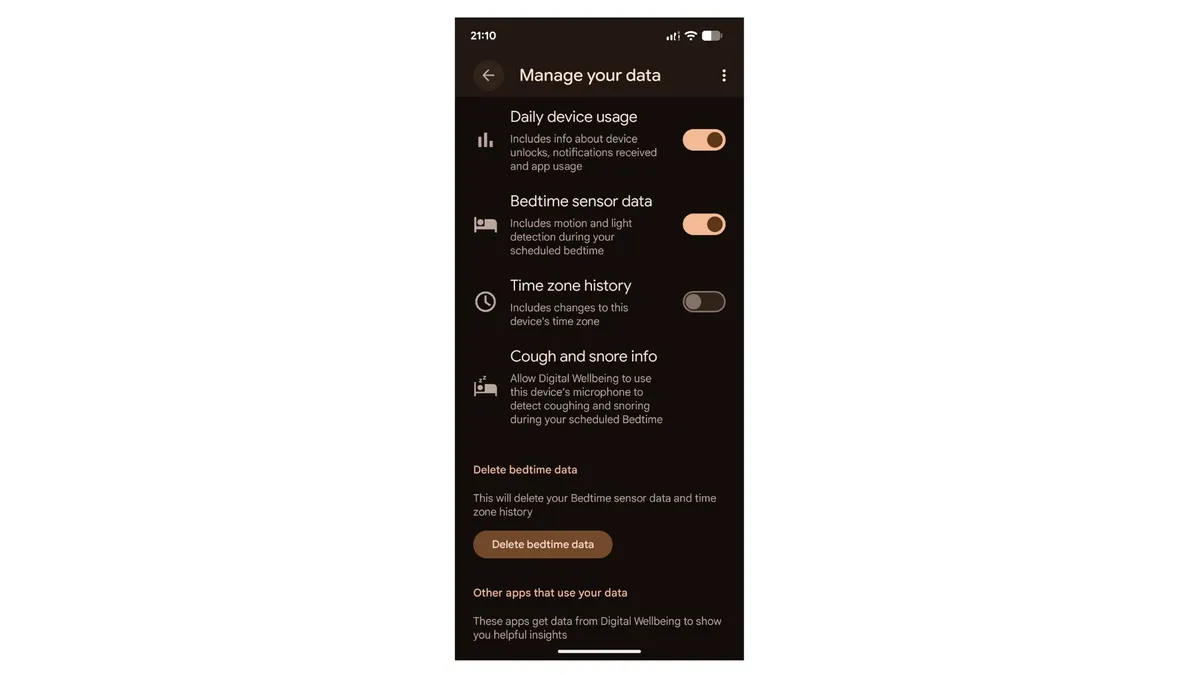
You can also go the extra mile and activate the cough and snore feature. This will allow the Digital Wellbeing app to use your device’s microphone to detect coughing and snoring during your scheduled bedtime.
To do this, click on the three dots next to ‘recent bedtime activity’, choose the manage data option and select cough and snore info.
How does Google Clock compare to a sunrise alarm clock?
The Google Clock sleep features have successfully helped me fix my bedtime routine, wind down faster and get enough hours of rest to tackle my tasks the next day.
However, there are certain limitations I’ve noticed.
While the Google Clock app sleep features have significantly reduced my doomscrolling and helped me reduce my phone use at night, I’ve still been reaching out for my phone as soon as my eyes open in the morning.
Experts say that the sudden overload of notifications can lead to mental exhaustion, brain rot and low energy levels even before you start the day.
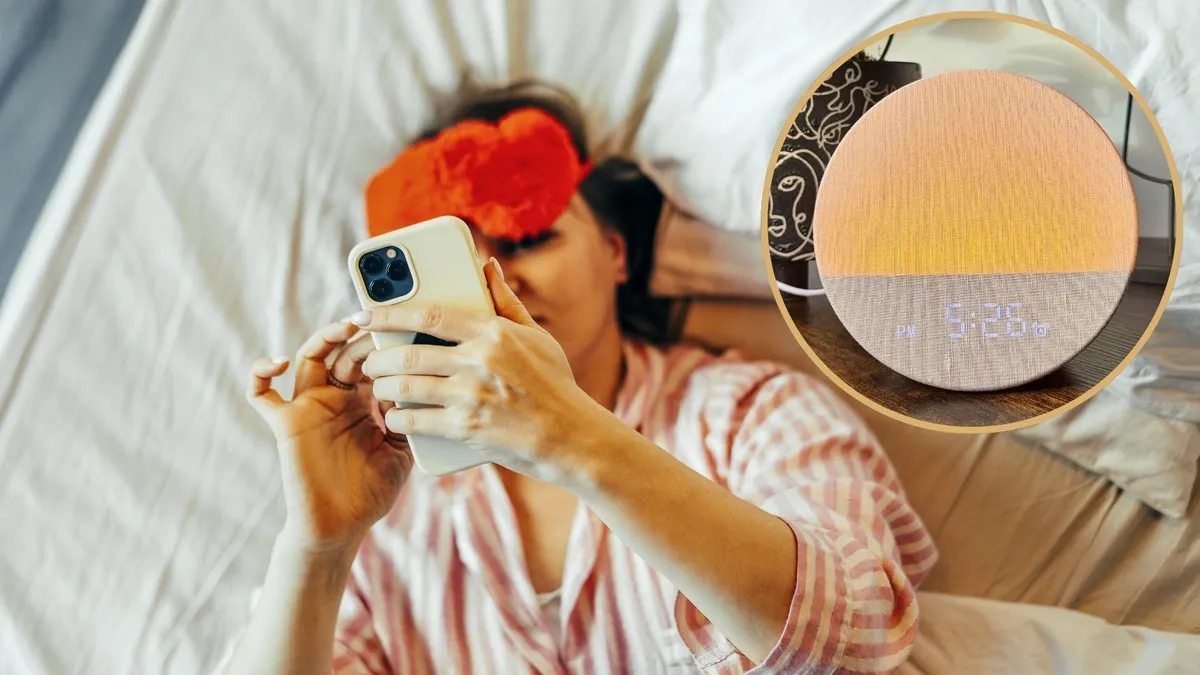
On the other hand, using body clock with built-in alarms gives me time to gradually take in my day and move at my own pace, without being suddenly exposed to huge to-do lists.
The simulation is also much closer to a natural sunrise, unlike the one by the Clock App, which isn’t bright enough to wake you up on its own.
In fact, I use the Lumie Bodyclock Glow 150, one of the best sunrise clocks we’ve tested in 2026, as a nightlight— something I can’t achieve with my Pixel phone.
The Google Clock app definitely offers a good sleep package, which is convenient while travelling, but on days when you’d prefer a phone detox, relying on specialised sleep tech such as a sunrise alarm clock is the way to go.
3 sleep products I recommend for better sleep
Source link
